Here to helpSmall answers.
More time for you.
How do I add my first shift?
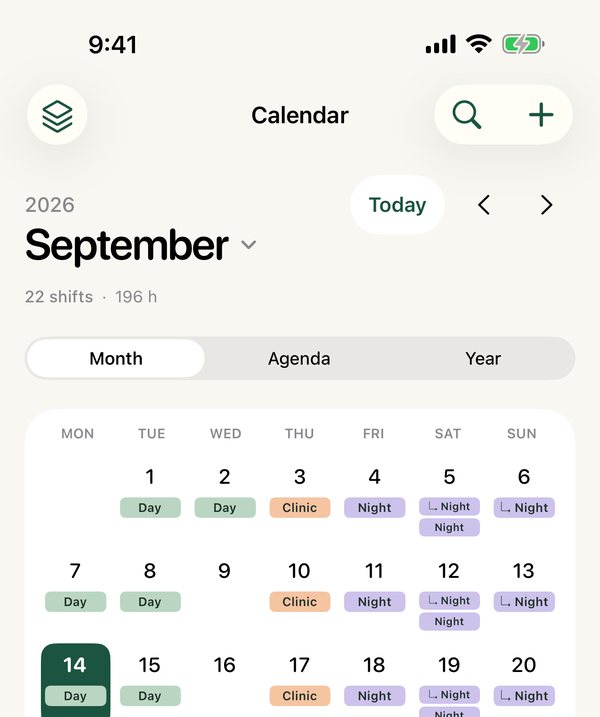
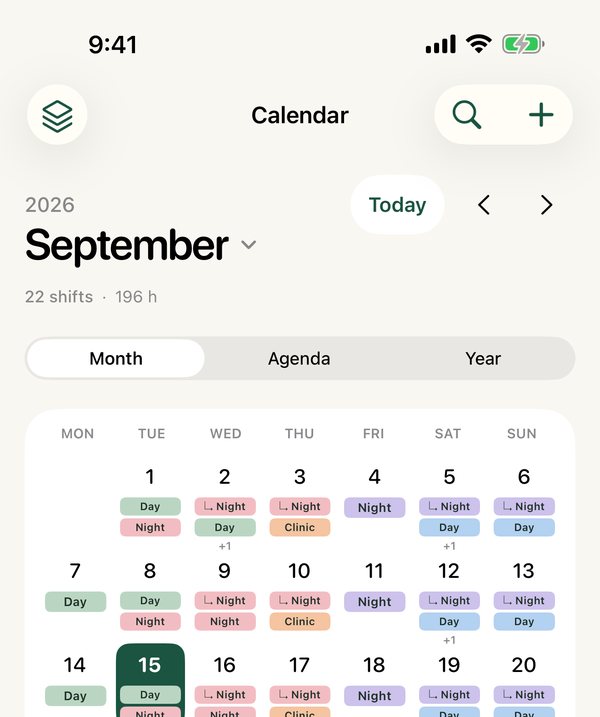
Tap + on Calendar. Choose the date, title, start and end times, then save. Use Templates for shifts you repeat, Add to several dates for a batch, or Rotations for an ongoing cycle. Overnight shifts finish on the following date.
Do I need an account or internet connection?
No app account is required. Your calendar, calculations and saved files work locally. An internet connection and your Apple Account are needed to start a trial, subscribe, purchase lifetime access or restore purchases. Optional iCloud sync and live sharing, from version 1.1.1, need you to be signed in to iCloud.
How do the trial, subscription and lifetime options work?
From version 1.1, new customers choose annual access with a 7-day free trial if eligible, or a separate one-time lifetime purchase. The trial becomes a paid annual subscription unless cancelled at least 24 hours before it ends. Annual access renews automatically until cancelled with Apple. The App Store shows your regional price before confirmation. An active trial, subscription or lifetime purchase is required for normal calendar and pay use; export, backup and deletion remain available after access expires.
Existing lifetime purchases remain valid. Original 14-day trials keep their original purchase date and full duration, with no automatic charge. Existing installations retain viewing, backup and export, and their original lifetime upgrade option.
How do I restore a purchase?
Open Settings → Access & purchases → Restore purchases using the Apple Account that made the purchase. If access has expired, Restore purchases is also available on the purchase screen. Restoring an original 14-day trial keeps its original start date. Purchases and calendar backups are separate: restoring a purchase does not bring back your shift records.
How do I move my calendar to an iPad or a new phone?
From version 1.1.1, the easiest way is iCloud sync: turn it on in Settings → iCloud sync on both devices, signed in to the same Apple Account. On a new device, choose “I already use Shift Calendar” during setup. Appearance, language, notifications and widget privacy stay separate on each device.
You can also use a backup file. In Settings → Backup & restore, create a full backup and save it somewhere you control. On the other device, choose Restore from a backup, select the file and review its contents. Restoring replaces that device’s current app data after saving a local recovery copy. Use a separate exported backup to keep both calendars.
Password-protected backups need the original password. The developer cannot recover a forgotten password or retrieve a lost local calendar.
Can I share my schedule?
From version 1.1.1, open Settings → Live sharing → Share my calendar, choose the name others see and invite people with Messages, Mail or a link. They open the link on an iPhone or iPad with Shift Calendar and always see your latest schedule, read-only, with shift names and times only. Pay, jobs, locations and notes are never shared. You can see who has access and stop sharing at any time on the same screen.
To send a one-off file instead, choose Settings → Export & share. A calendar snapshot can be imported by another Shift Calendar user. PDF and ICS files can be shared with other apps. Shared snapshots are read-only and do not sync automatically; export and import a newer file to update them. Pay, employers and locations are excluded from shared schedules; private notes are included only if you choose them.
How does holiday pay work?
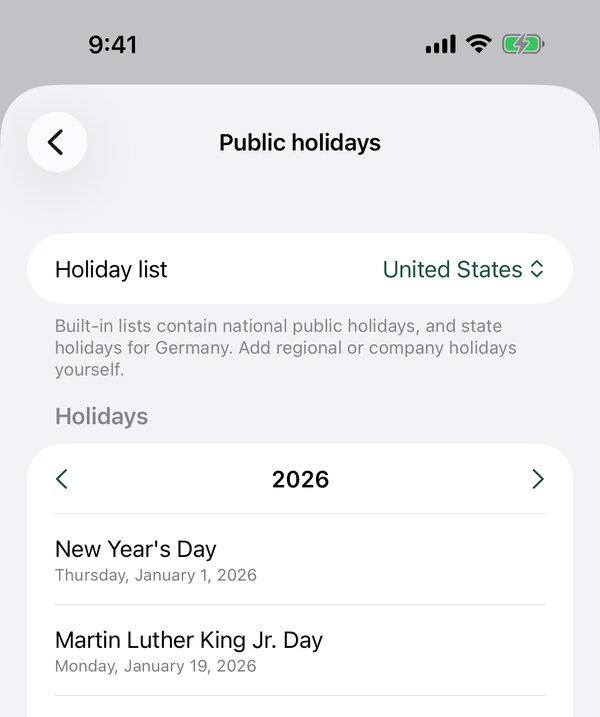
Open Settings → Jobs & pay rules, choose a job and open Public holidays. Pick your country, or your state in Germany, to load its national public holidays. Swipe to remove a day your employer does not observe, and add regional or company holidays yourself. Then add a pay rule with holiday pay, as an extra percentage, an extra amount per hour or a replacement hourly rate. It applies to time worked on those days; enter 50 for time and a half.
Built-in lists cover national holidays and do not include every regional or contract rule, so check them against your employer’s calendar.
What does the Live Activity show?
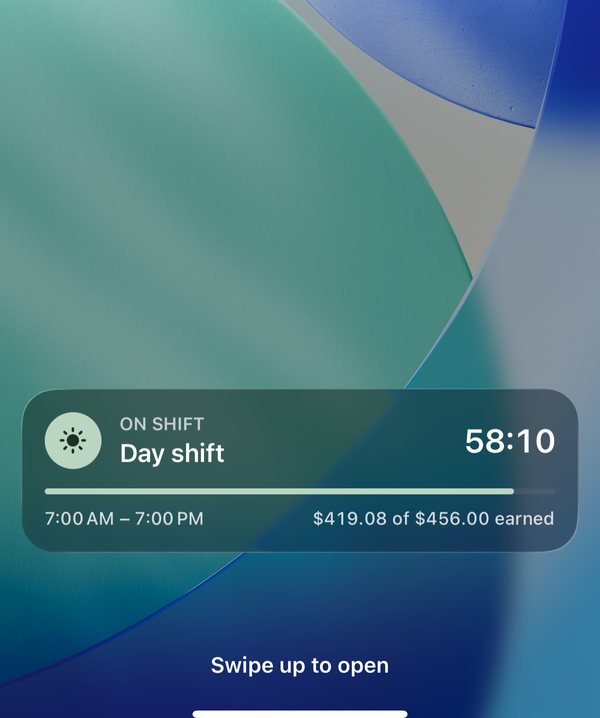
From an hour before a shift until it ends, the Lock Screen and Dynamic Island show your shift and the time left, with a bar that fills as the shift goes on. If private mode is off (Settings → Widgets & Live Activity), they also show the estimated gross pay for the shift and what you have earned so far. That amount refreshes when you open the app and in the background when iOS allows. The Live Activity starts when you open the app, or with the Shortcut “Show shift on Lock Screen”, and you can turn it off on the same settings screen.
How do I use the Apple Watch app?
Install Shift Calendar on your watch from the Watch app on your iPhone. Your next shift, a countdown, this month’s shifts and hours and the days ahead appear automatically from your iPhone. Add a complication to your watch face for a quick look. In private mode, shift titles and pay stay hidden on the watch.
Why might the pay estimate differ from my payslip?
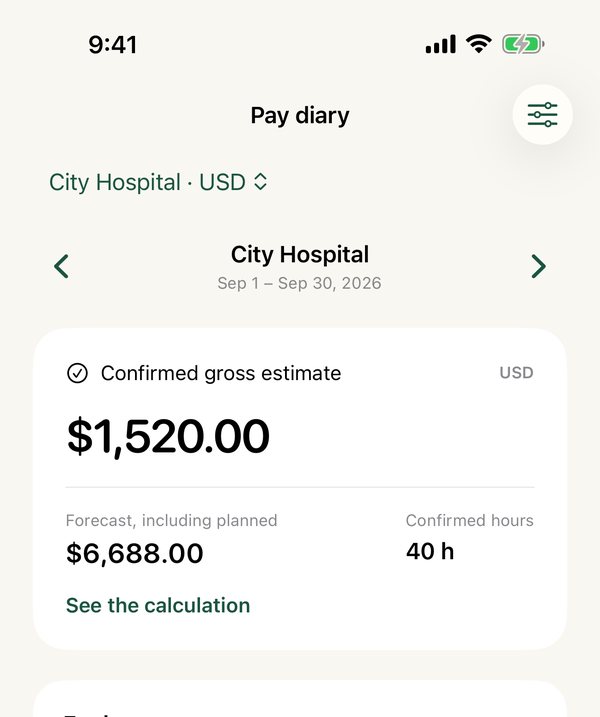
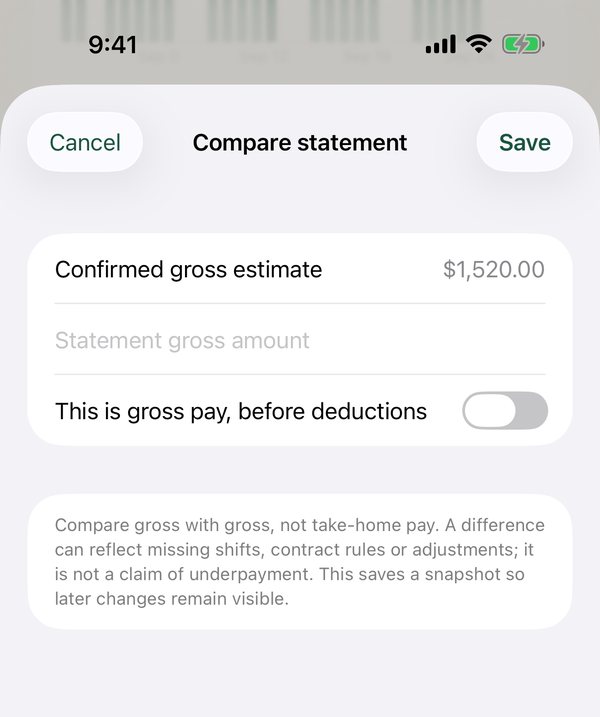
The app estimates gross pay from your recorded work and configured rules. It does not calculate tax, deductions, net pay or statutory entitlement. Confirm completed work, check the full overtime week and compare gross with gross. Clearly labelled manual adjustments can represent allowances or contract rules the calculator does not support.
Can I keep my payslips in the app?
Yes. Open Pay → Payslips, import a readable PDF up to 10 MB and choose its job and pay period. Add a title or notes, reopen it, export it or remove it. On a wide iPad, the PDF appears beside the calculation; on iPhone, switch between PDF and Calculation. Compare the figures yourself: the app does not interpret PDFs automatically.
Saved PDFs stay locally and are included in full backups. Backups containing PDFs need build 3 or later. Deleting a local copy does not remove the original from Files or any backup you exported.
Why didn’t a reminder sound?
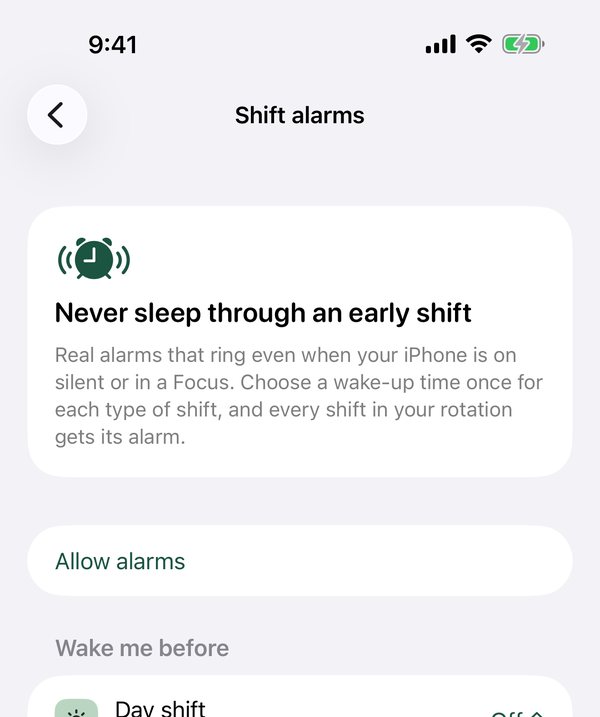
Reminders depend on iOS notification permissions, Focus and sound settings. They are not guaranteed wake-up alarms. On iOS 26, use Settings → Shift alarms for real alarms that ring even on silent or in a Focus. The app schedules the next 60 reminders and refreshes them when you open it. Open Settings → Reminders to check permissions and refresh the schedule.
How can I remove my data?
Open Settings → Delete all local data. This removes records, app widget data and scheduled app reminders. Files and calendar events exported elsewhere must be removed there separately. Deleting app data does not remove App Store purchase history.
If you use iCloud sync, deleting local data turns sync off on that device and keeps the iCloud copy for your other devices. It also stops live sharing. To remove the iCloud copy, open the Settings app → your name → iCloud → Manage Account Storage → Shift Calendar.
Report a problem or suggest an idea
Email us with the app version, iOS version, device model and the steps that caused the problem. Please include only the information needed to help; avoid sending private shift notes, pay statements, passwords or backup files.
Email Shift Calendar support[email protected]
You can also report a problem or suggest an idea on GitHub. GitHub reports are public: leave out personal information and work records.
During TestFlight testing, you can also send feedback through Apple’s TestFlight app.